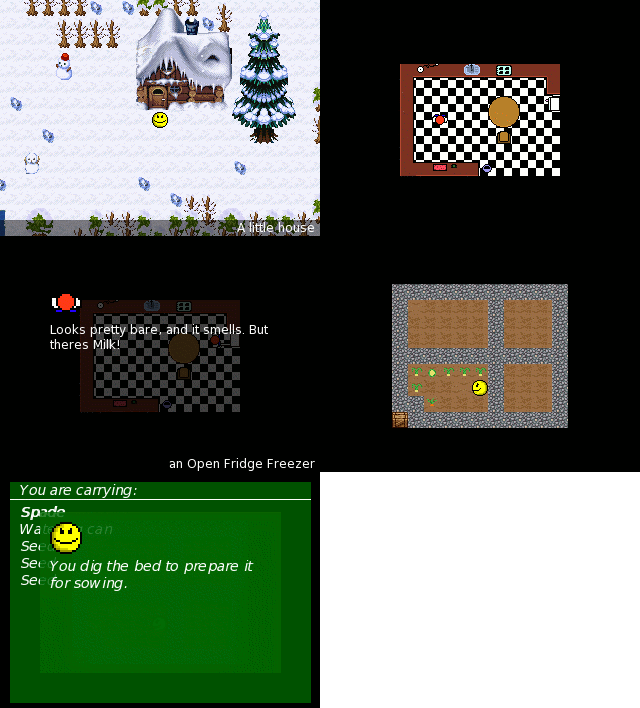
 CACK is (or will be) a constuction kit for crap little adventure games. Think Dizzy style gameplay (pick up object, use object etc) with Zelda style top down view. Beta 2 is just a release of the player (editor hasn’t been started yet), but you can still use it to create games if you don’t mind doing a bit of manual editing of xml and writing map data. Included in the zip are gp2x and windows binaries, and full source for building on linux.
04/09/07 Stickman chapter 1 is available.
03/06/07 Beta 2 released.
01/05/07 Work is progressing on beta 2 of the player. Editor not started yet.
Beta 2 changelog
New -

New demo games - Bobs Garden by me (woogal) and Operation Cuppa by cHEM.
Can set hero direction at start and when teleporting.
Hero graphic can be changed with script.
Action and object IDs no longer have to be consecutive.
Inventory can be named.
Inventory can view more than 9 items and hold up to 100.
Long inventory item names scroll.
Cutscenes with 11 transitions (fades, wipes, and slides).
Time based events (action triggered after x milliseconds).
Random actions.
Object actions can be triggered when walked on.
Specific area actions triggered when walked on.
Title graphic.
An initial action can be called at the start of a new game.
USB controller support.
Game launcher.
Custom quit message.
TV left/right positioning (GP2X).
Volume controls (GP2X).

Fixed -

Several memory leaks.
Crash with only one word in the usetext.
Problems with large numbers of actions or objects.
Description text not always disappearing on smaller map sizes.
Screen flicker on TV (GP2X).
Problems with trying to walk on or use objects off the edge of the map.
19/12/06 Beta 1 released.
Installing
Copy the cack folder somewhere. For the GP2X version, place the contents of the gp2x folder into the cack folder, then run cack-player.gpe from the games menu. For the Windows version, place the contents of the win32 folder into the cack folder and run cack-player.exe.
eg, the final Windows folder structure should look something like this –
fonts <folder>
selector <folder>
demo <folder>
.. (other game folders)
buildselector.exe
cack-player.exe
iconv.dll
jpeg.dll
... (other dlls from win32 folder)
Games are installed into seperate folders alongside the CACK executable. Cack-player will default to loading the game selector. To directly launch a game instead (eg, for a shortcut) launch with cack-player.exe -game gamename (or on the gp2x create a script containing ./cack-player.gpe -game gamename).
Controls
| Windows/Linux | GP2X | |
|---|---|---|
| Movement | Cursor keys | Joystick |
| Use | Return | B |
| Inventory | Right Control | A |
| Exit menu | Escape | Start |
| TV screen position | L and R | |
| Volume | Volume +- |
USB controllers can also be used. Use, inventory and exit buttons are whatever the controller decides are the first 3 buttons. On the GP2X, external controllers won’t control the tv screen position or volume.